
1. Using Microsoft Forms (Built-in for PowerPoint)
✅ Best for Quick Polls, No Extra Software Needed
- Open PowerPoint and go to the slide where you want to add the poll.
- Click on “Insert” → “Forms” (available in Microsoft 365).
- Select “New Form” and create your poll/question.
- The poll will appear as an interactive slide, and attendees can respond via a shared link or QR code.
2. Using Poll Everywhere (Most Popular Option)
✅ Best for Real-time Polling with Word Clouds, Q&A, Multiple Choice
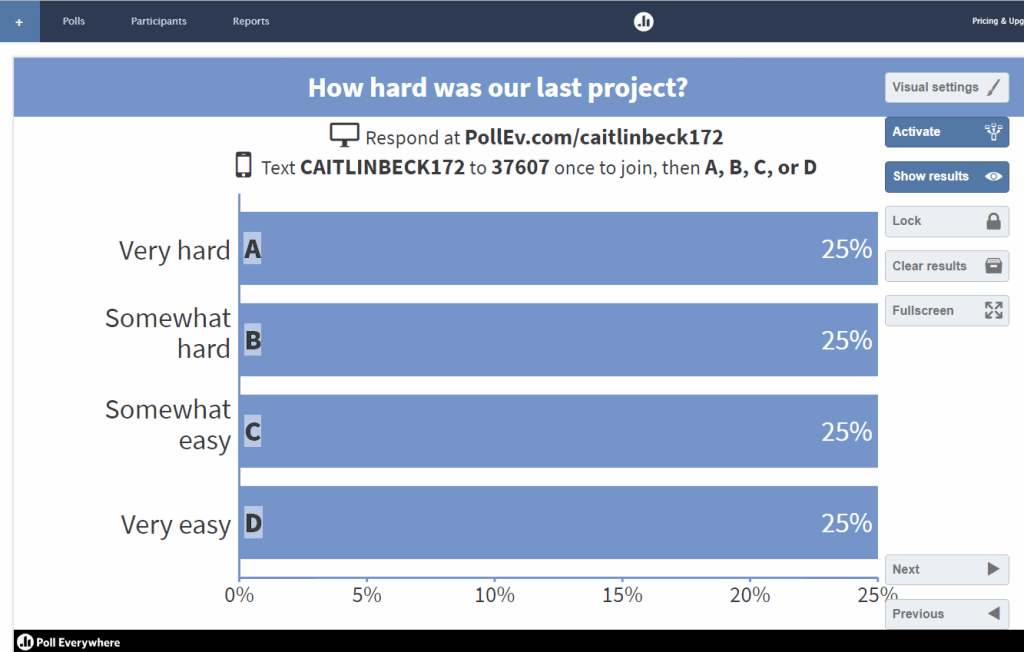
- Sign up at Poll Everywhere.
- Download the Poll Everywhere PowerPoint Add-in:
- Open PowerPoint → Click Insert → Get Add-ins.
- Search for Poll Everywhere and install it.
- Log in and create your poll (multiple choice, word cloud, etc.).
- Insert the poll into your slide and present.
- Audience members can respond via a web link or SMS, and results update in real-time.
3. Using Slido (For Large Webinars & Teams Integration)
✅ Best for Business & Virtual Meetings (Zoom, Teams, Webex)
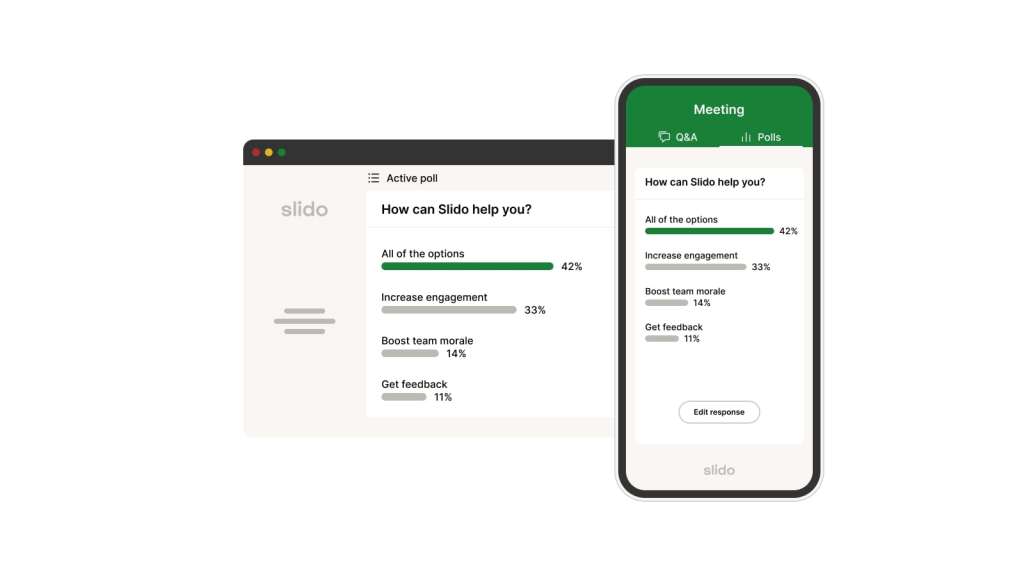
- Sign up at Slido.
- Download the Slido for PowerPoint Add-in from Microsoft Office Add-ins.
- Create a poll (word cloud, multiple choice, quiz, etc.).
- Insert it into your PowerPoint slide.
- Attendees vote via a Slido link or QR code.
4. Using Mentimeter (For Fun & Engaging Polls)
✅ Best for Gamified Polls & Audience Voting
- Sign up at Mentimeter.
- Create a poll and copy the presentation link.
- In PowerPoint, embed the Mentimeter live poll using a web link.
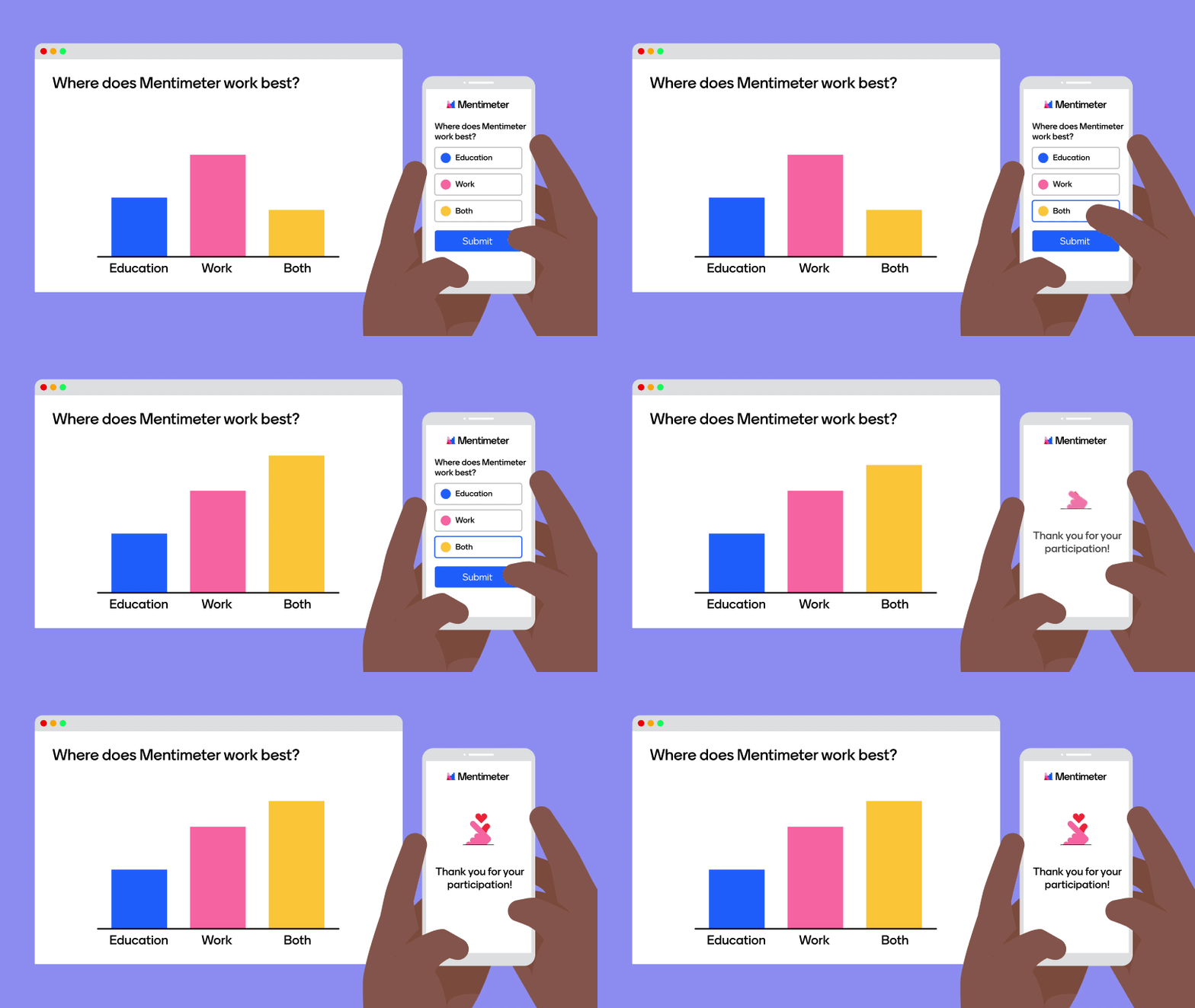
- Audience votes via their phones, and the results appear live.
Which One to Choose?
| Tool | Best For | Free Plan Available? | Interactive Features |
|---|---|---|---|
| Microsoft Forms | Simple polls | ✅ Yes | Basic polls |
| Poll Everywhere | Live results in PowerPoint | ✅ Yes | Word clouds, Q&A, Multiple choice |
| Slido | Business/Teams meetings | ✅ Yes | Polls, Q&A, Quizzes |
| Mentimeter | Fun, gamified polls | ✅ Yes | Leaderboards, GIFs, Reactions |
 Code Help by Asmi